Save Instagram images in full HD
Right-clicking a photo in a browser feels like the obvious answer, and it hands you the wrong file almost every time. What sits in the page is a display copy, sized for the space it occupies on screen. Drag it to your desktop and you often end up with something around six hundred pixels wide, soft at the edges and useless for anything but a quick look.
The full HD file exists. Instagram stores a larger version and serves it when someone opens a post properly on a good screen, but nothing in the interface offers it to you as a download. That gap is the reason tools like this one exist at all.
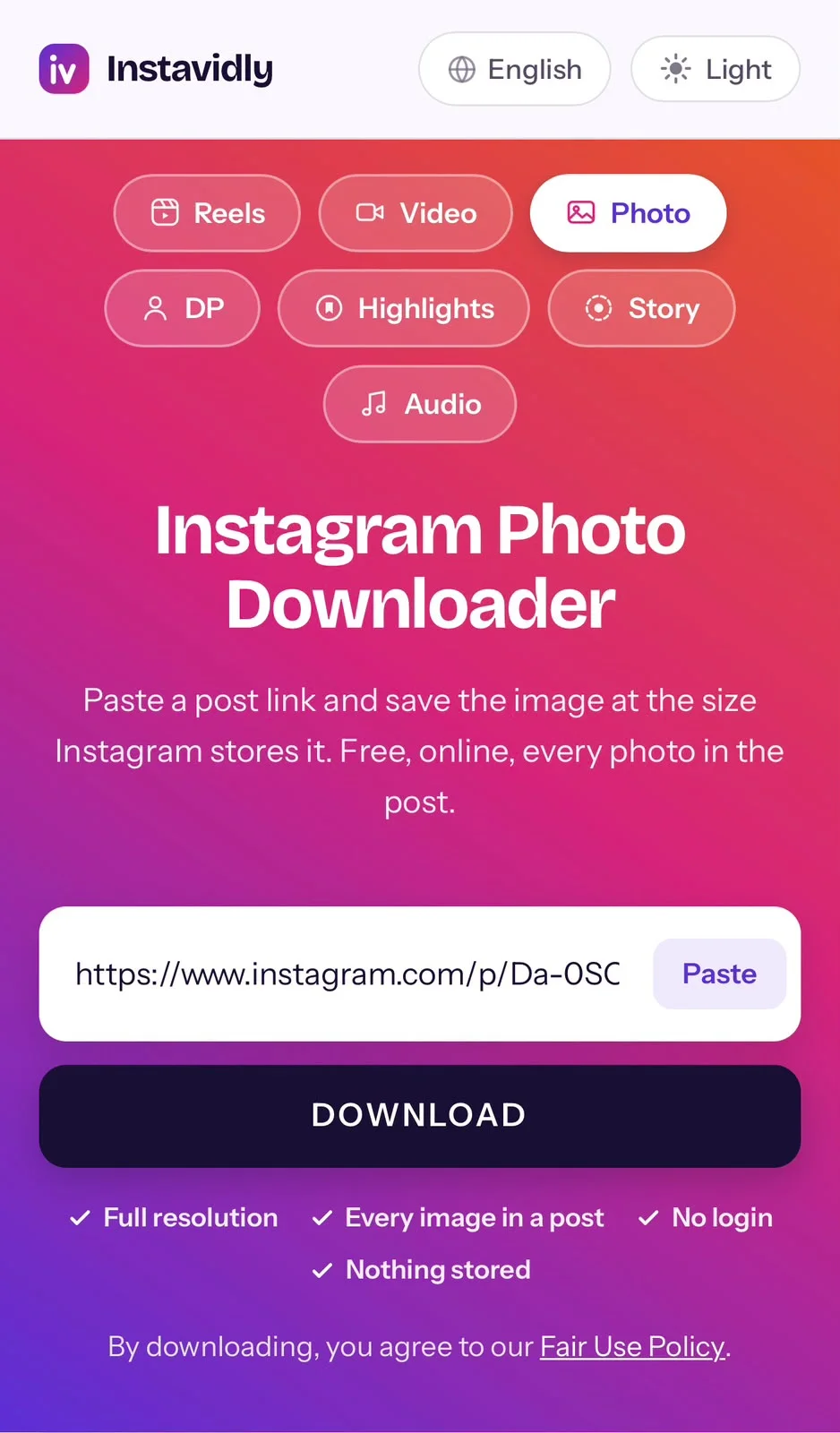
Pasting a link here reaches the stored file directly rather than whatever your browser happened to render. The difference is obvious the moment you compare the two side by side, and it matters most for images containing text, where a display copy turns lettering into a smudge while the stored file keeps it readable.
On a phone the problem is worse, because screenshotting is the usual workaround. A screenshot captures your screen at whatever size your screen is, with the interface sitting over the top and the aspect ratio decided by your handset rather than the photographer.
Downloading every photo in a post
A single post can hold up to twenty photos. Instagram provides no way to keep any of them, so the usual approach is swiping through and screenshotting each one, which is slow and produces twenty cropped screen captures rather than twenty photographs.
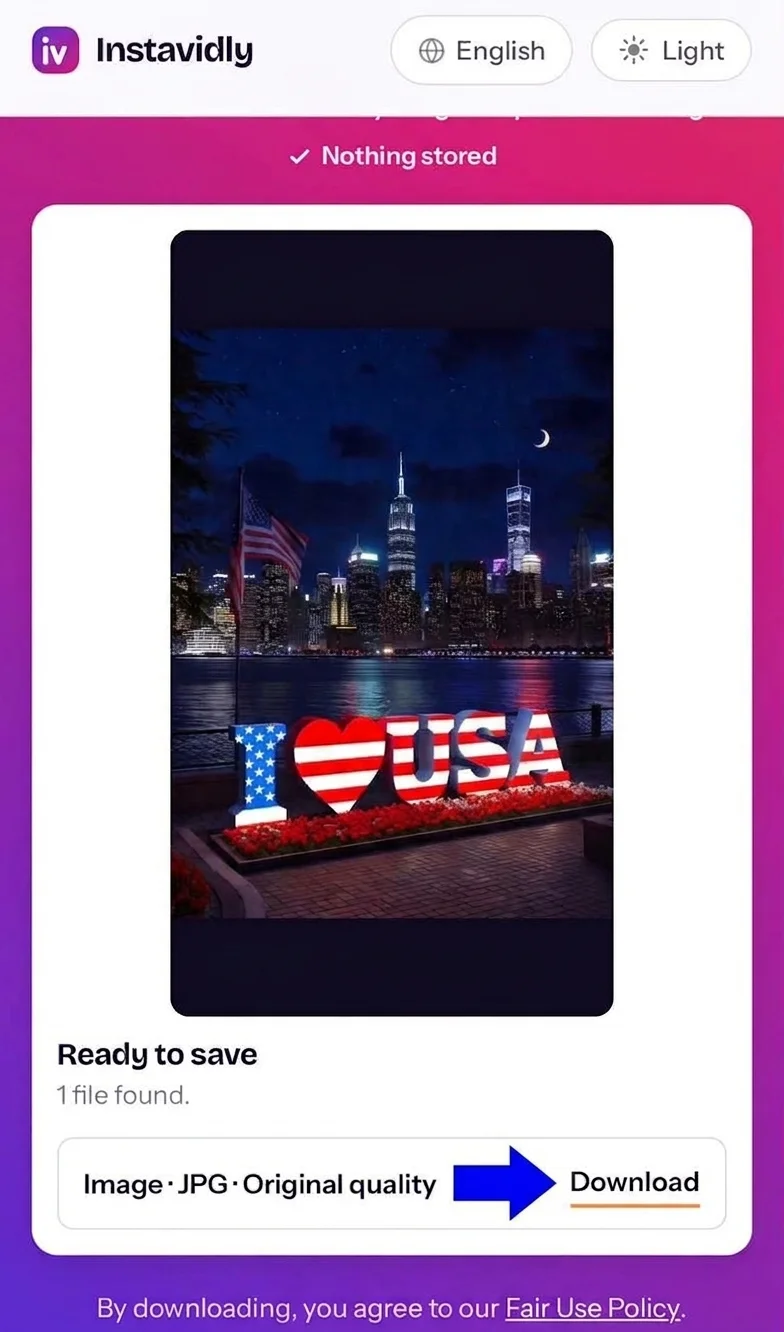
Paste the link once and every image in the post comes back as its own file, numbered in the order the account arranged them. Take one, take several, or take all twenty pics in a single visit.
That numbering earns its place more often than you would think. Sequences are how these posts are used: a recipe running across eight images, a set of instructions building on each other, a before and after that only reads correctly in order. Files arriving numbered means they sit on your device in the right sequence rather than as a pile you have to rearrange.
Posts mixing images with moving clips are handled the same way. The images arrive as JPG files and anything that moves comes back separately, so a mixed post does not force you to choose between them.
What resolution you actually get
Instagram stores photos at a maximum of about 1080 pixels along the longest edge. Square posts land near 1080 by 1080, upright ones near 1080 by 1350, and wide ones near 1080 by 566. Those are the files you receive.
They are not the files the photographer started with. Every upload is resized and re-compressed on the way in, and the original is discarded rather than kept in reserve. A shot taken on a modern phone camera might begin at forty-eight megapixels and finish, once posted, at roughly two. The other forty-six never reach Instagram at all.
This is why claims about recovering original quality deserve suspicion. Nothing can return detail that was thrown away before the post went live, and enlarging a 1080-pixel file to four thousand pixels simply invents pixels by averaging the ones nearby. The result is bigger, blurrier, and no more detailed than what you began with.
What is worth asking for is the stored file passed along without a second compression. An already-compressed image squeezed again loses detail in exactly the places you notice, around text, edges and skin. Avoiding that second pass is the whole job.
Is a free photo downloader any good?
Free tends to mean one of three things, and only one of them is worth your time.
Some sites are free because the job genuinely costs almost nothing. Reading a public post and passing a file along is cheap to run, so charging for it would be difficult to defend. That is the honest version, and this is one of them.
Others are free because you are paying in attention instead. Pop-ups between you and the file, redirects to places you did not ask for, countdown timers before a button appears. The download works, eventually, and the experience is unpleasant enough that people go elsewhere next time.
The third kind is free because something is being taken. Sites requesting an Instagram login before they will hand over a photo are the clearest example, and no public post requires an account to read. A free tool asking for credentials is not free at all.
The useful test is what a site wants before it gives you anything. If the answer is a link and nothing else, the arrangement is straightforward. If it wants a sign-in, an install, or three taps through adverts, the price is simply hidden.
Do you need an Instagram photo downloader app?
For photos especially, an app is hard to justify when the same job is free in a browser.
Photos are small. A saved photo weighs a couple of hundred kilobytes, arrives in a second, and needs nothing clever to handle it. Installing software that occupies space permanently, claims access to your storage, and shows adverts around a task that trivial is a lopsided bargain.
There is a practical wrinkle too. Image tools tend to ask for broad gallery access, which is a good deal more than they need to write a single file, and that permission stays granted long after you have forgotten the app is there.
Reliability points the same way. When Instagram alters how it delivers media, anything installed sits broken until an update is published and fetched. Pages are corrected at the source, so the next visit simply works.
Where these tools are distributed matters as well. Image downloaders disappear from official stores regularly, and the ones that remain are often handed out as files to install by hand, which skips every safety check the store performs. If a tap-to-open shortcut is what appeals, saving this page to a home screen gives you that without any of the rest.
Where your photos save
Your browser chooses the destination, and it varies by device.
On iPhone
Saved images go into the Files app, not straight into Photos, and that trips most people up initially. Press and hold an image there and choose Save Image to move it across, and it joins your recent shots. When a post holds many images, saving them one at a time is more reliable on iOS than starting several together.
On Android
Each image lands in Downloads and your gallery picks it up on its own, so it appears alongside your camera photos with nothing more to do. Notifications mark each finished file, and tapping one opens it straight away.
On PC and Mac
Files gather in your usual download location and open in any image viewer. Numbered files from a multi-image post stay in order on disk, which is convenient if you are keeping a set together.
Can you use a photo you saved?
People treat photos more casually than video, and the rules are exactly the same.
Whoever pressed the shutter owns the photograph. Posting it publicly changes nothing about that, and neither does the ease of saving it. Keeping an image for yourself, sending it to a friend, or using it as a reference while you work all sit comfortably within ordinary personal use.
Publishing is where it turns. Putting someone else's photograph on your own account, using it on a website, printing it for sale, or placing it in an advert are acts requiring permission, and the fact that it was easy to obtain has no bearing on whether you were entitled to use it.
Two situations deserve particular care. Photographs of people carry a second layer beyond copyright, because the person shown has their own interest in how their likeness is used. And images from businesses often contain logos and product shots that are protected separately again.
Asking is usually simple and frequently works. A short message explaining what you want to do with an image costs nothing, and photographers tend to appreciate being asked rather than discovering their work in use later.
When a photo will not download
A handful of causes explain nearly every failure.
The account is private. That setting stops outside requests before they reach anything, so there is nothing available to collect.
The post has been taken down. Open the link in Instagram to check. If it fails there too, the images went with the post.
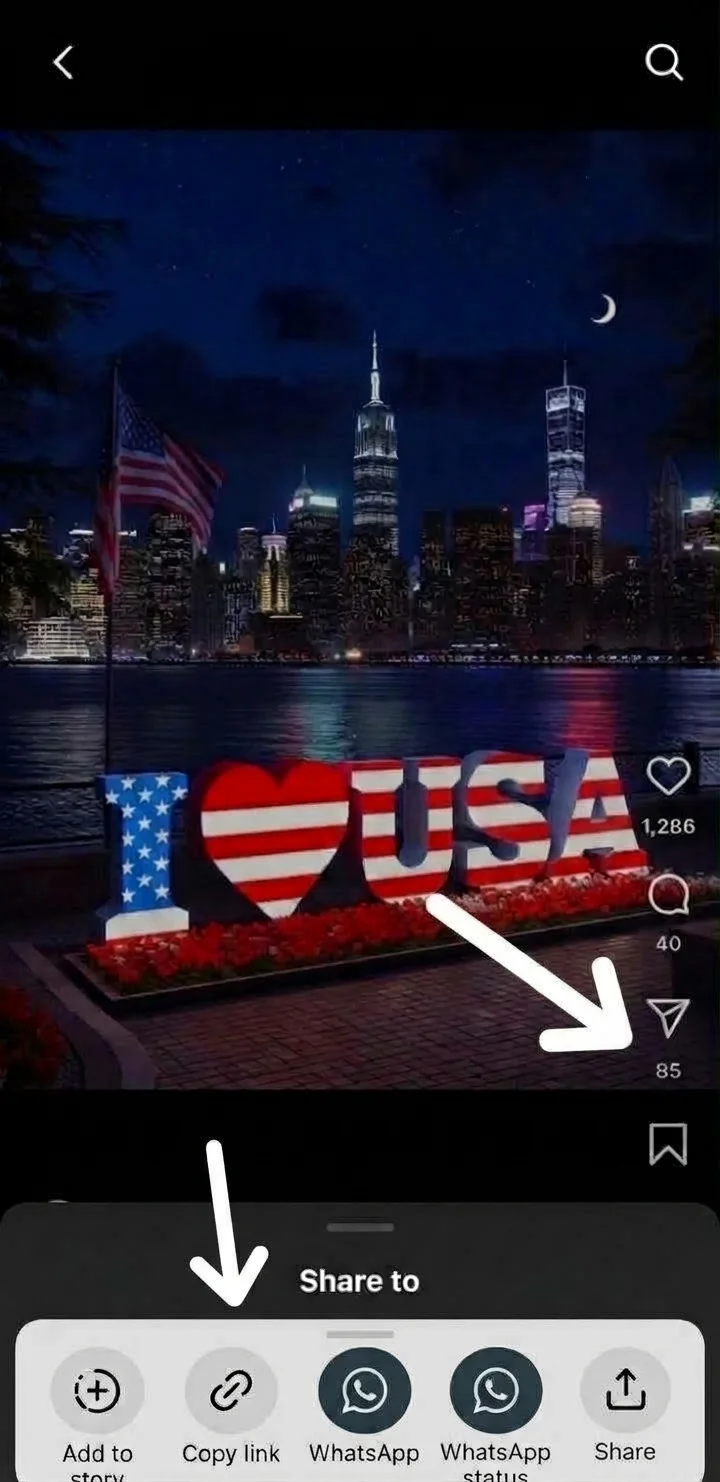
The address points somewhere else. An account page identifies a person rather than any particular post. What you need is the post address itself, marked by /p/ and a short code after it. The menu on the post hands you the correct one.
Instagram has shifted something. Changes like this reach every tool at once and seldom last. Returning an hour or two later usually finds everything working again.
Other tools on Instavidly
This page handles images from posts. These cover everything else: